> ## Documentation Index
> Fetch the complete documentation index at: https://docs.secally.com/llms.txt
> Use this file to discover all available pages before exploring further.
# Onboarding
> Install the GitHub App, choose monitored repos, and run your first scans.
**Short on time?**
Install SecAlly, toggle a repository to **Monitored**, open a PR, and you’ll see results immediately.
Follow these steps to start scanning pull requests and requesting full repository scans from GitHub.
## Step 1: Sign in with GitHub
[Sign in to SecAlly](https://secally.com/auth/github) using your GitHub account.
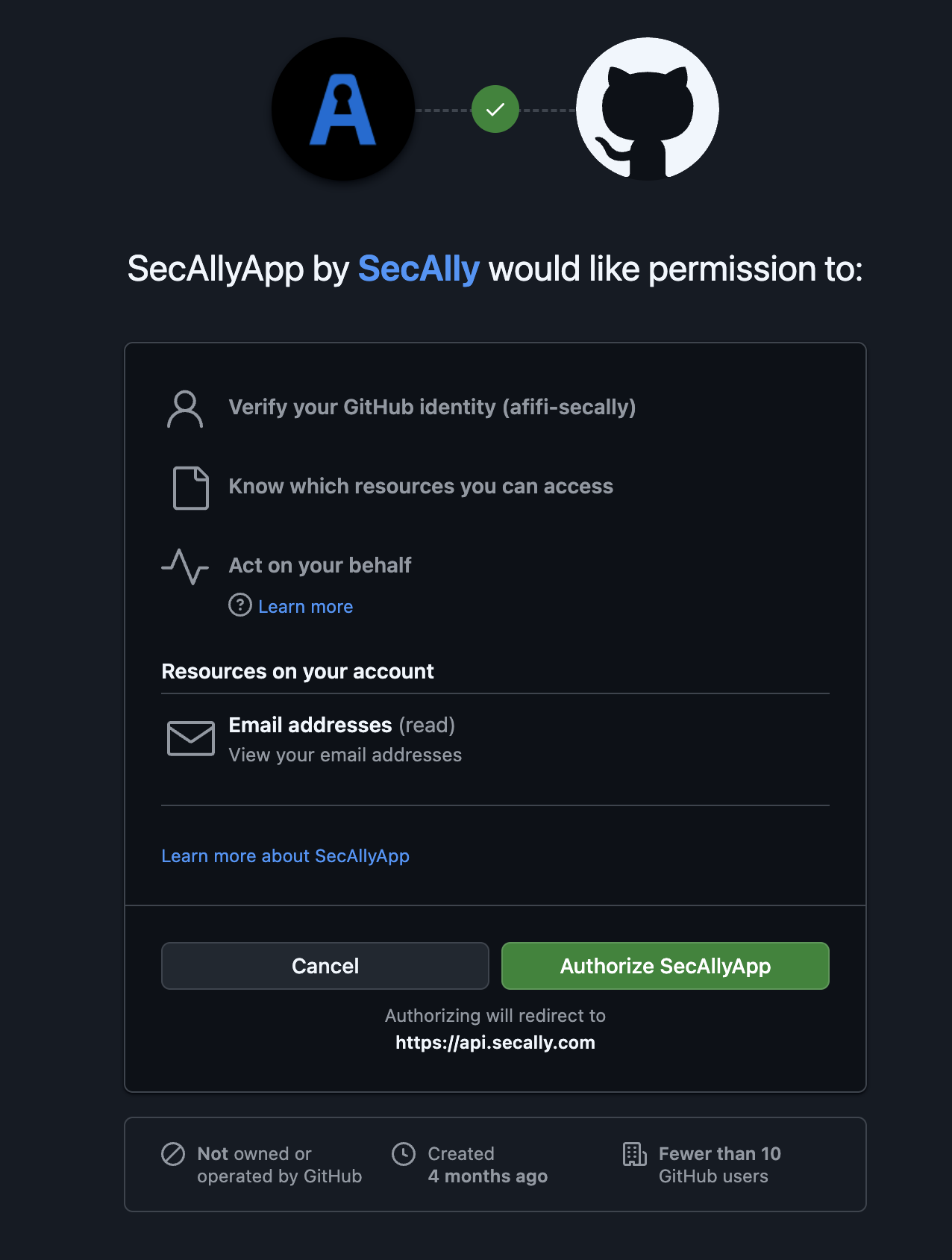 If this is your first time signing in, you will be redirected to GitHub to install the SecAlly GitHub App for your organization.
## Step 2: Install the SecAlly GitHub App
Install SecAlly for the GitHub organization that owns the repositories you want to scan.
If this is your first time signing in, you will be redirected to GitHub to install the SecAlly GitHub App for your organization.
## Step 2: Install the SecAlly GitHub App
Install SecAlly for the GitHub organization that owns the repositories you want to scan.
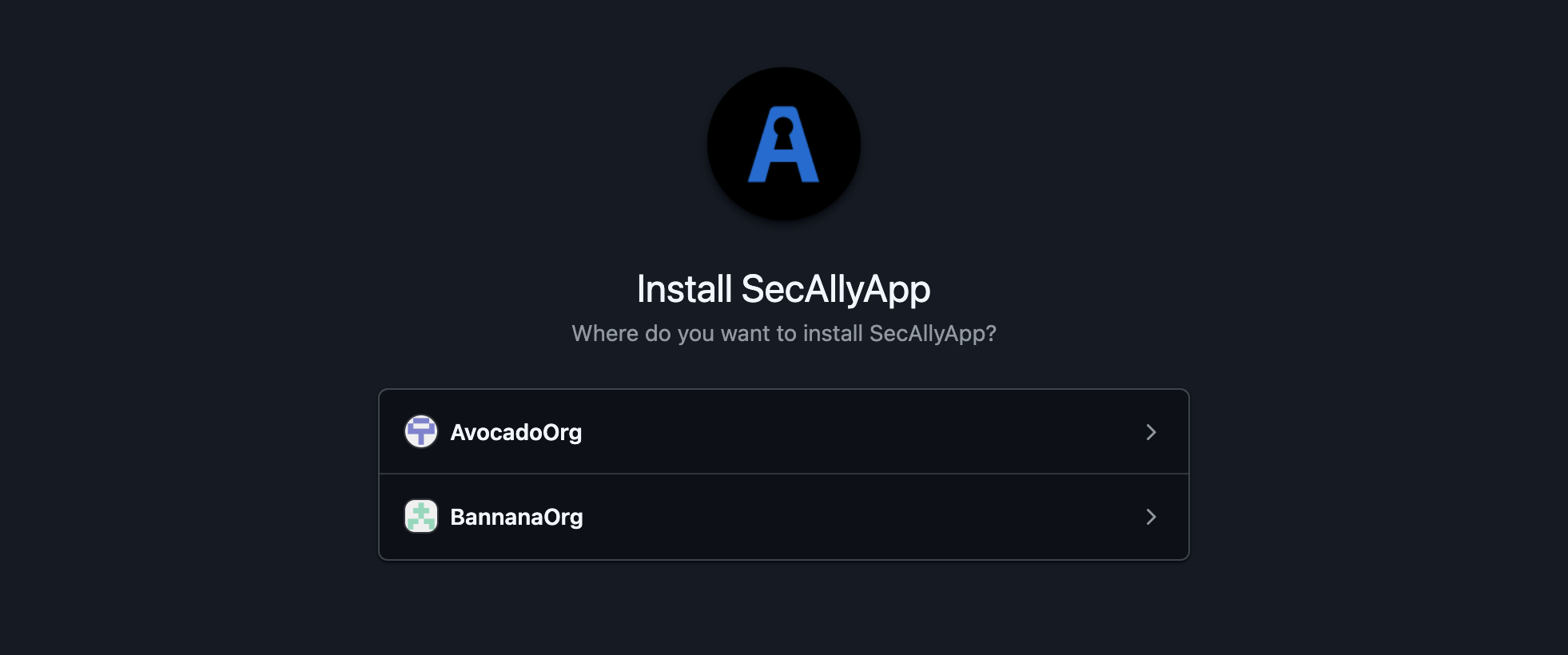 Then, choose which repositories SecAlly can access. You can update this later from the GitHub App settings.
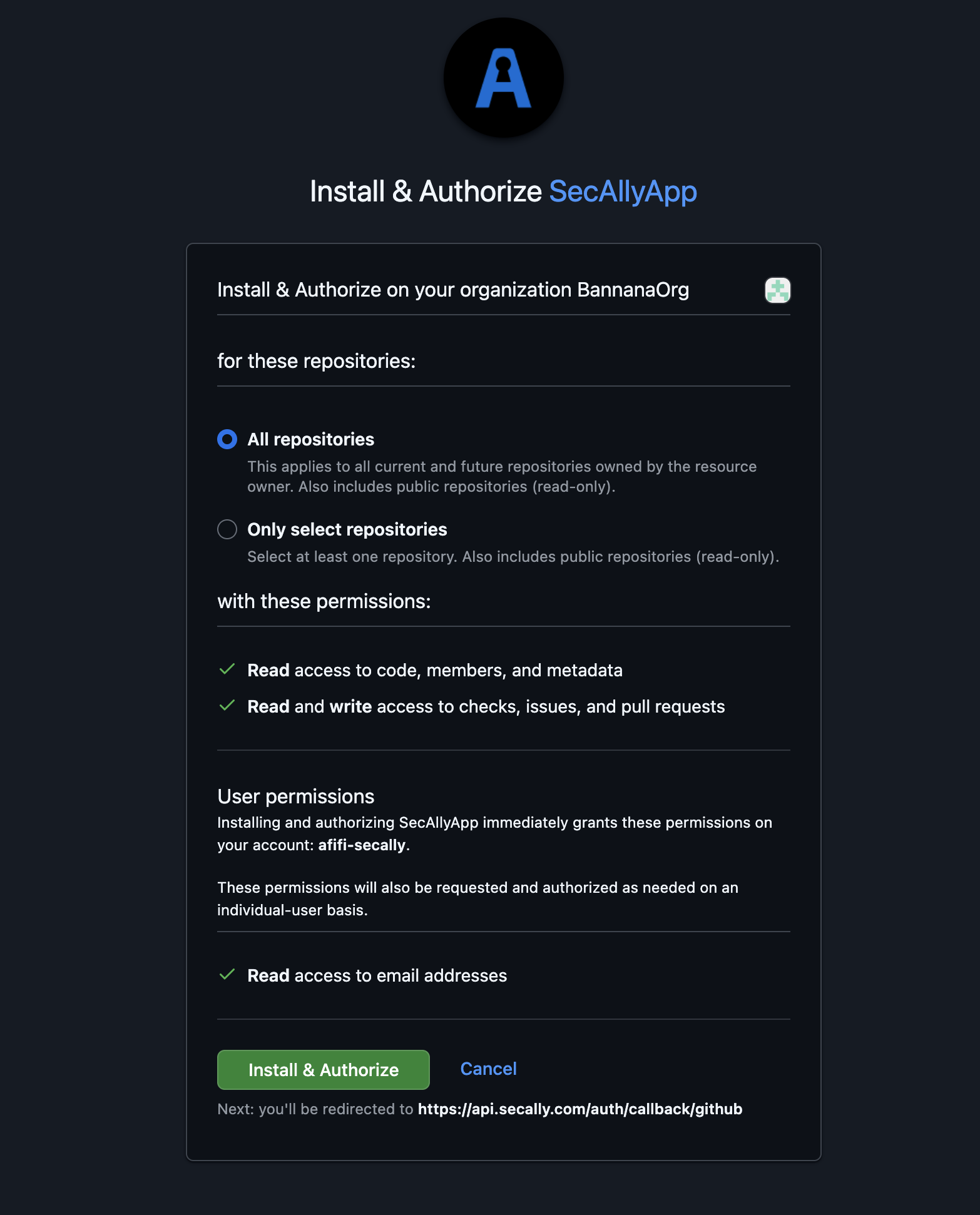 ## Step 3: Choose repositories to monitor
1. Return to the [SecAlly dashboard](https://secally.com/app).
2. Select your organization.
3. Toggle **Monitored** on for the repositories you want SecAlly to scan.
Once enabled, SecAlly will automatically scan pull requests and accept scan requests for that repository.
## Step 3: Choose repositories to monitor
1. Return to the [SecAlly dashboard](https://secally.com/app).
2. Select your organization.
3. Toggle **Monitored** on for the repositories you want SecAlly to scan.
Once enabled, SecAlly will automatically scan pull requests and accept scan requests for that repository.
 ## Step 4: Verify with a [PR scan](/scans/pr-scan)
Open a pull request in a monitored repository. SecAlly will:
* create a GitHub check run, and
* post a PR review with findings, including inline comments.
PR scans run automatically for monitored repositories.
## Step 5: Verify with a [full repository scan](/scans/full-scan)
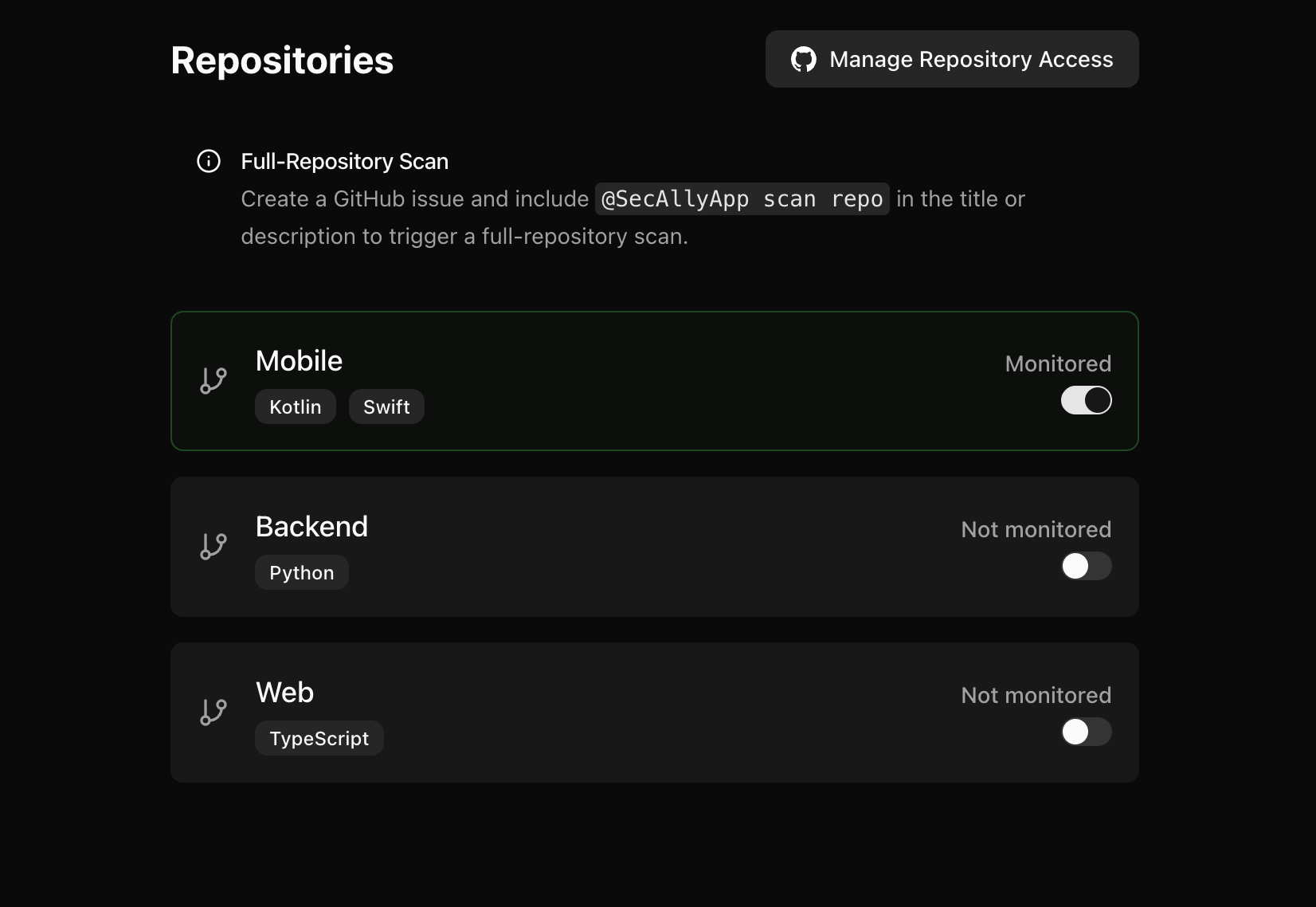
Open a new GitHub issue in a monitored repository and include
```
@SecAllyApp scan repo
```
in the title or description. SecAlly will respond in the issue thread with scan status and results.
## Common Issues
* **Repository doesn’t show up in SecAlly:** update the GitHub App installation to grant access to that repository, then refresh.
* **Scans don’t start:** confirm the repository is toggled **Monitored** and the organization has an active trial or subscription.
* **Full scan didn’t trigger:** SecAlly listens for newly opened issues; open a new issue that includes the trigger text.
## Step 4: Verify with a [PR scan](/scans/pr-scan)
Open a pull request in a monitored repository. SecAlly will:
* create a GitHub check run, and
* post a PR review with findings, including inline comments.
PR scans run automatically for monitored repositories.
## Step 5: Verify with a [full repository scan](/scans/full-scan)
Open a new GitHub issue in a monitored repository and include
```
@SecAllyApp scan repo
```
in the title or description. SecAlly will respond in the issue thread with scan status and results.
## Common Issues
* **Repository doesn’t show up in SecAlly:** update the GitHub App installation to grant access to that repository, then refresh.
* **Scans don’t start:** confirm the repository is toggled **Monitored** and the organization has an active trial or subscription.
* **Full scan didn’t trigger:** SecAlly listens for newly opened issues; open a new issue that includes the trigger text.